Setting up a Counter
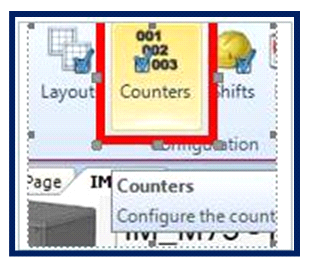
Setting Up Counters
Counters in I-Mark software allow automatic numbering of parts or products, useful for serialization, batch tracking, or production counts.

Access the Counter Settings
- On the Ribbon menu, select your active machine.
- The Counters dialog will appear.
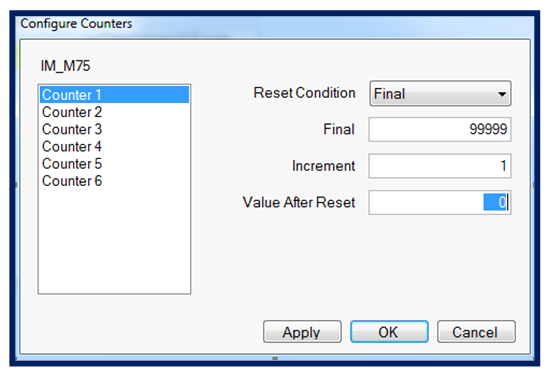
Configuring a Counter
- Select the desired counter (e.g., Counter 0).
- Set the parameters according to your application requirements.
Important Notes:
- The Final Number determines how many digits the counter will use.
- Example: Final Number = 99999 → five digits.
- Maximum value = 99999. After reaching this value, the counter will reset.
- Additional reset conditions are available depending on your application.

Using Counters in Text Entities
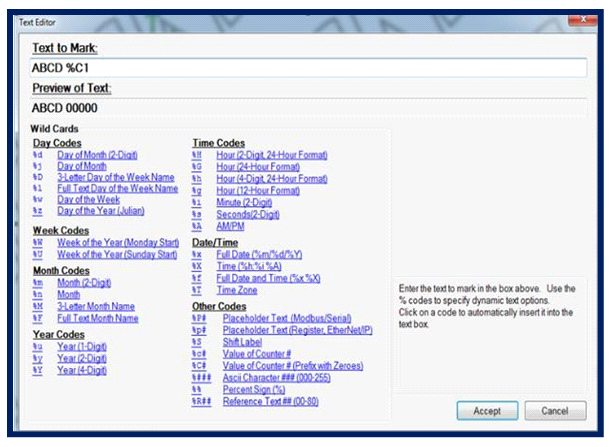
- Insert the counter into your text string using the counter code:
%C1 → Counter 1
%C2 → Counter 2
%C3 → Counter 3
- Place the counter code anywhere in your text entity.
- Multiple counters can be used in the same layout or across different programs.
Ensure counters are uniquely assigned per program/layout to prevent unintended overlap.

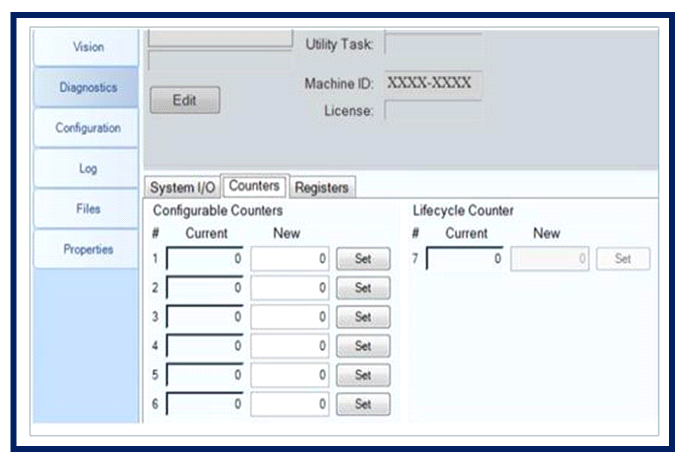
Viewing and Overriding Counter Values
- Navigate to the Diagnostics tab on the left side of the controller page.
- Select the Counters tab.
- Here you can:
- View of current counter values
- Manually override any counter as needed

Operational Notes
- Counters automatically increase according to the programmed layout.
- Ensure the correct counter number is used in the text entity to match your setup.
- Use the diagnostics view to monitor and adjust counters during production. This allows precise control of serialized marking and ensures repeatable, traceable outputs.
Created with the Personal Edition of HelpNDoc: Free PDF documentation generator