Display Settings

The Zoom features are controlled through four icons on the far left of the View Menu in the Ribbon.
The icon zoom in to a smaller area of the layout file on the screen.


The Actual icon will reflect the actual size of the mark. If used with pen options, it will help determine how close lines and character will be on the final product.
The out icon will zoom out to show more of the layout file on the screen.

The Fit icon will automatically display the entire marking field in the Main Work Area.
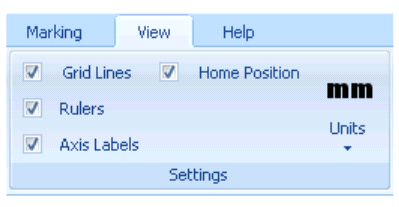
Grid Lines: Check box for on. Internal grid lines go through the layout. area. Grid lines are shown every inch, or 5 millimeters.
Rulers: Check box for on. Rulers run along the top and left of the layout screen. They display inches or Millimeters depending on the units.
Axis Labels: Check Box for on. Specifies X,Y axis and motion type (linear, rotational), and Units.
Home Position*: Check Box for on. Home position is labeled with two intersecting green lines with arrows.
* Home position is defined as the maximum X and the Zero Y. This is the position that the marker is defaulted to start each cycle from.
Units: English or Metric. Select system through drop down menu. If In is shown the units are in Inches. If MM is shown the units are in millimeters.
Created with the Personal Edition of HelpNDoc: Why Microsoft Word Isn't Cut Out for Documentation: The Benefits of a Help Authoring Tool