Configuring IP Address
Default IP Address
- All controllers ship with the default IP address:
10.1.10.225

Option 1: Leave Controller at Default IP
If keeping the controller at its default IP:
- Change the IPv4 settings on your PC to match the controller’s network

Option 2: Change the IP Address on the Controller
When operating multiple controllers in a cell, change the IP address on the controller itself using the I-Mark application.
If the Controller Cannot Be Reached
- On startup, I-Mark will display:
“Error: Failed to connect to marking machine. Do you wish to set up the IP address of unreachable machines?” - Click Yes
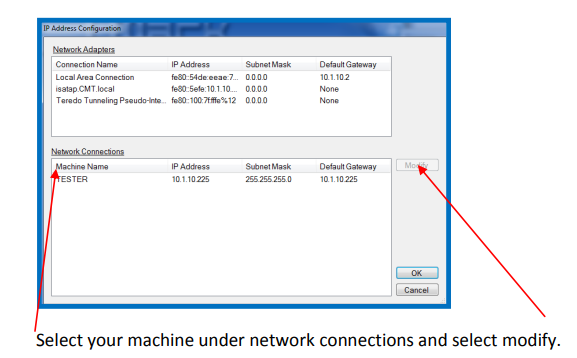
Ignore local and Wi-Fi connections. Focus on the Ethernet adapter or the machine name under Network Connections.

IP Setup Procedure
- Highlight the machine name you wish to configure
- Click Modify
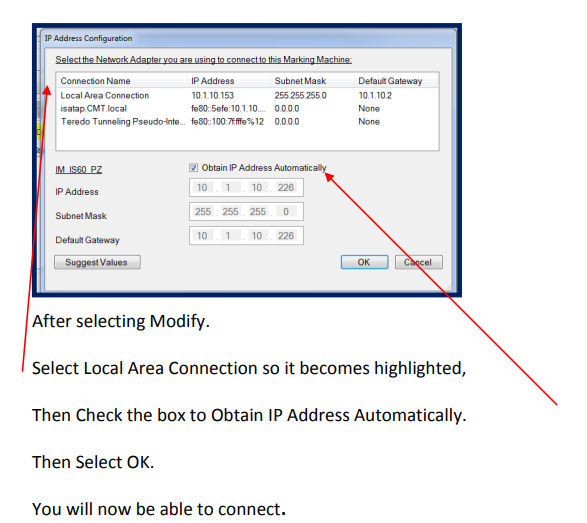
- Ensure “Maintain IP address automatically” is unchecked
- Select the appropriate network adapter
- Click Suggest Values
- This aligns the controller’s IP with the selected network adapter
- Alternatively, you may manually assign an IP

Manual IP Assignment Guidelines
- Use: 10.1.10.xxx
- The final number should be within the range of 1 to 254
- The PC network adapter IP and controller IP must NOT be identical, or connection will fail
Subnet mask and default gateway may be adjusted if required.
Your IT or controls department can assist with advanced network configurations.
IP Error
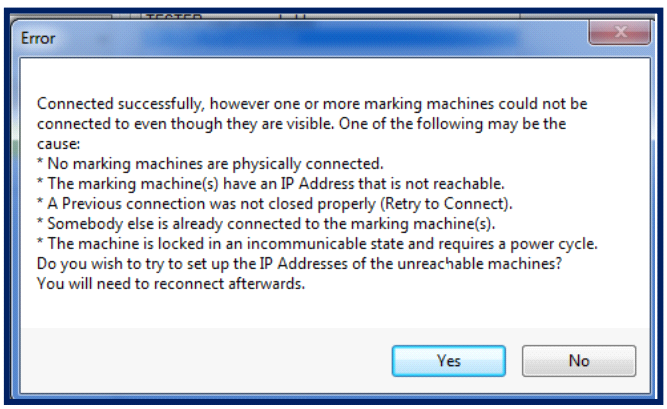
If your network is not matching up with your computers IP address you will receive an error message, if you get the message you will need to modify your computers local area connection.
Select yes to obtain the machines current IP address and suggested local values.
If you are connecting your marker to a network that is already configured modify the controller only to match existing network configuration.
If your computer is NOT on an existing network you need to change the IP address of the local area connection.
The controller ships with the following IP address set already 10.1.10.225.
A recommended setting for your local are connection would look like 10.1.10.226
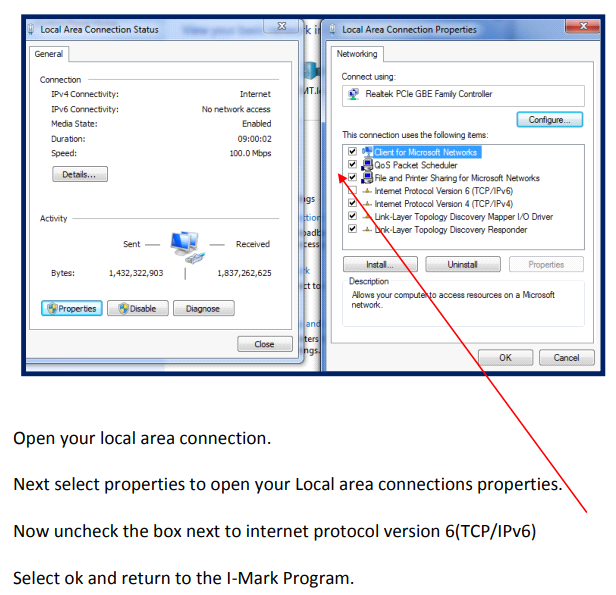
You will need to go into your computers network settings and modify.
Created with the Personal Edition of HelpNDoc: Say Goodbye to Documentation Headaches with a Help Authoring Tool