P2P Pin to Part
Creating a Layout Using the Pin-to-Part (P2P) System in Columbia Marking I-Mark Software
Requirements
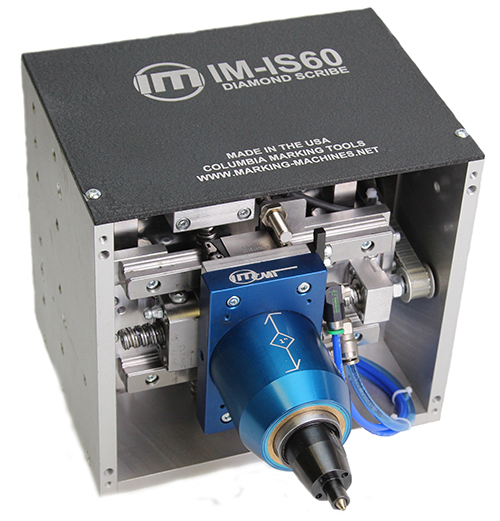
- Pin-to-Part (P2P) assembly installed
- Proper wire configuration completed
Procedure
- Create a New Layout
Open the software and create a new layout from the main interface. - Insert P2P Component
Navigate to the Layout tab and select the P2P (Pin-to-Part) option.
Place the P2P component into the workspace and assign it within the marking order. - Configure Initial P2P Position (Teach Function)
- Use the Teach function to define the starting position of the P2P assembly.
- Advance the marking stroke to ensure proper positioning before marking begins.
- Add Marking Content
Insert the required marking elements, such as: - Text fields
- Data Matrix codes
- Configure Retraction P2P Step
- Add a second P2P component to the layout sequence.
- Use the Teach function to define the retracted position after the marking cycle is complete.
- Save and Download Layout
- Download the layout to the controller to save and apply the configuration.
Notes
- Ensure all teach positions are verified for accuracy before running production.
- Confirm wiring and P2P response prior to executing the marking cycle
Created with the Personal Edition of HelpNDoc: Effortlessly upgrade your WinHelp HLP help files to CHM with HelpNDoc