Navigating Workspace
Launching the I-Mark Software
The I-Mark software can be launched from the desktop shortcut or from the application directory.
Select the I-Mark icon to start the software.
Once the software has fully loaded, the Start Page will be displayed.
Workspace
A Workspace is a collection of layouts, files, machines, and global settings associated with specific I-Mark controllers. It provides a way to group these items for efficient organization, management, and monitoring by an operator or system.
Note: The I-Mark program interface, including window arrangement and navigation, may vary depending on user preferences, applications, or system configurations.
Understanding the Workspace
A Workspace defines the relationships between:
- Marking layouts
- Controllers
- Graphics and fonts
- Global system settings
By using a Workspace, the software displays only the machines and data relevant to a specific operation, rather than all controllers on the network.
Practical Example
In a large manufacturing facility, multiple machining cells may exist, each dedicated to a specific part or process. Each cell can contain one or more I-Mark controllers with their own layouts, graphics, and settings.
A Workspace allows you to:
- Group only the controllers for a specific cell
- View and manage only the layouts and machines assigned to that group
- Prevent accidental interaction with machines outside your responsibility
When a Workspace is opened, only the controllers mapped to that Workspace appear in the Navigation Pane, providing a cleaner interface and simplifying management.
Workspace Scope and Parameters
A Workspace defines the machine parameters and the global I-Mark environment, including:
- Which machines are available for marking (mapped controllers)
- Global machine settings
- Global counter settings
- Global I/O configuration
By creating a new Workspace, the system searches for machines connected to your computer or network and allows you to connect to them. Once connected, you can begin editing their properties.

Creating a New Workspace
When a new Workspace is created, the system will search for marking machines connected to the computer or available on the network. The user may then select which machines to associate with the Workspace. Once connected, the properties of those machines can be viewed and edited.
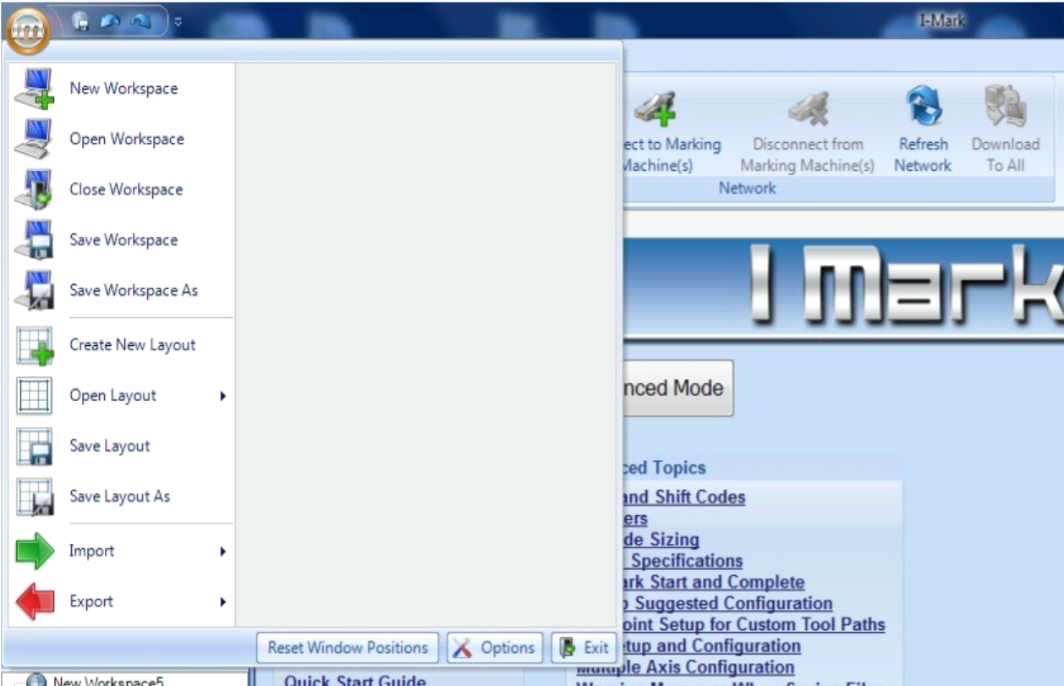
A new Workspace can be created in two different ways:
Method 1: ORB Menu
- Select New Workspace from the ORB menu.
(The ORB is the Intelli-Mark symbol located in the upper-left corner of the main application window.)
Method 2: Start Page
- From the Start Page, select Advanced Mode.
- Choose Create New Workspace to create multiple
Creating multiple is a advanced mode only feature
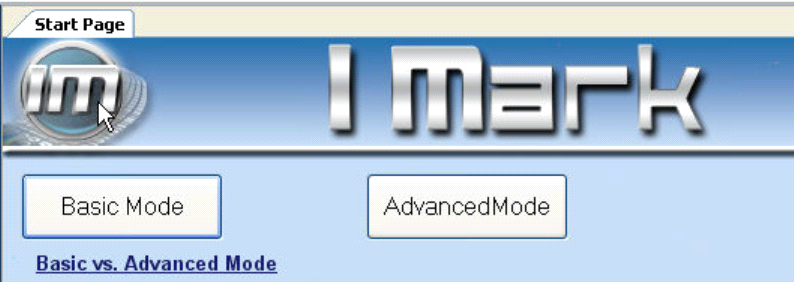
Note: Workspace creation is available only in Advanced Mode.
Then choose Basic Mode vs Advanced Mode
The I-Mark software operates in two modes: Basic Mode and Advanced Mode.
- Basic Mode
- Displays all marking machines detected on the network
- Does not restrict machine visibility
- Does not use Workspaces to filter controllers
- Advanced Mode
- Enables the creation and use of Workspaces
- Allows the user to limit which machines are visible and accessible
- Recommended for production environments with multiple controllers
By using Advanced Mode with Workspaces, operators can reduce screen clutter, limit machine access, and improve overall system organization.
Opening an Existing Workspace
To open an existing Workspace:
- Select Open Workspace from the ORB menu.
- Use the file explorer dialog to navigate to the desired Workspace file.
- Select the file and click Open.
Default Workspace file location:
C:\My Documents\I-Mark

Saving a Workspace
To save changes to a Workspace:
- Select Save Workspace from the ORB menu.
Important notes:
- Workspaces are not saved automatically
- An asterisk (*) displayed next to the Workspace name indicates unsaved changes
- Workspace files use the .ctml file extension
- Saved Workspace files are stored in the I-Mark data directory

Workspace File Status Indicator
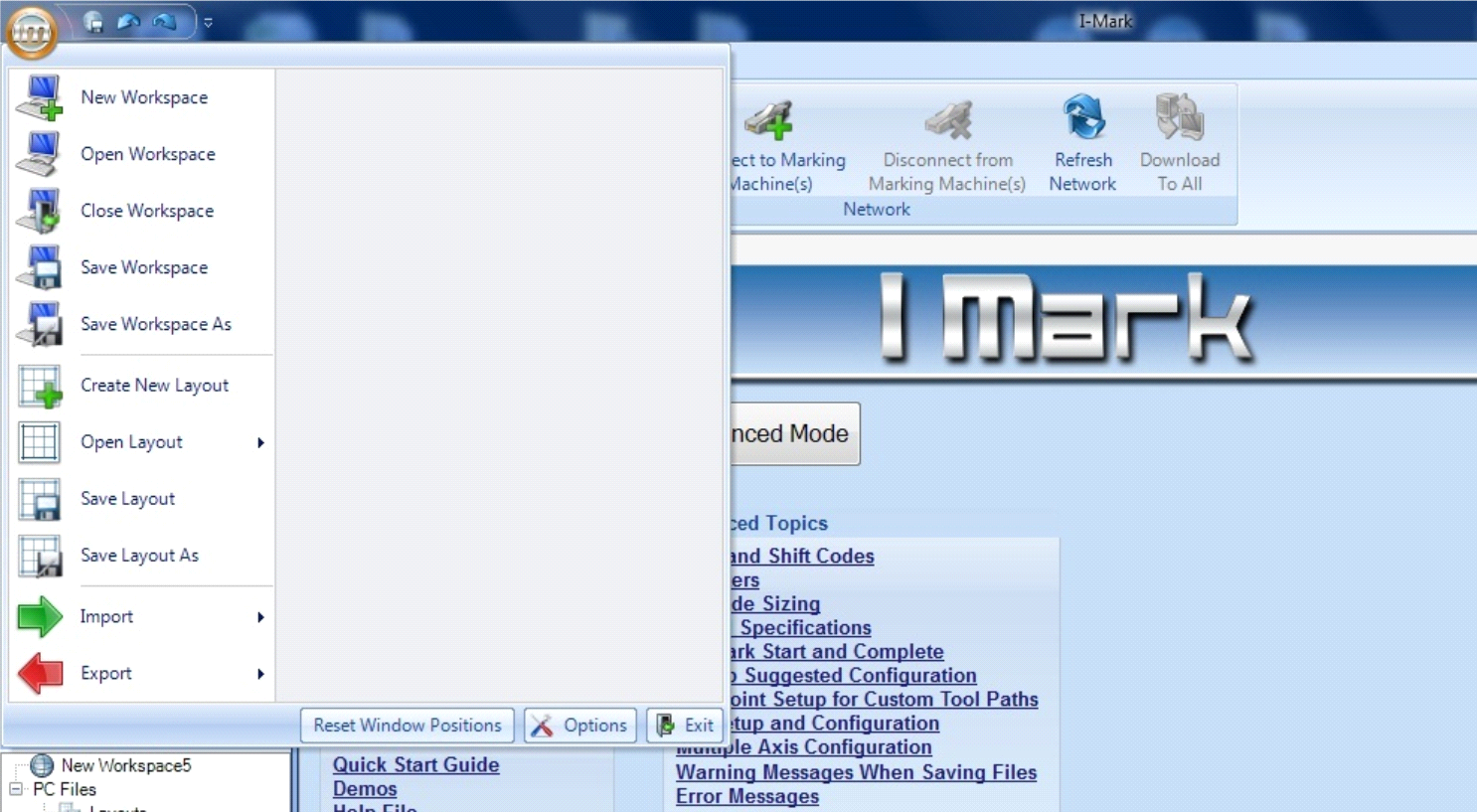
If a Workspace has been modified but not saved, an asterisk (*) will appear next to the file name in the Main Work Area tab. Once the Workspace is saved, the asterisk will be removed.
Workspace files are not created or saved automatically.
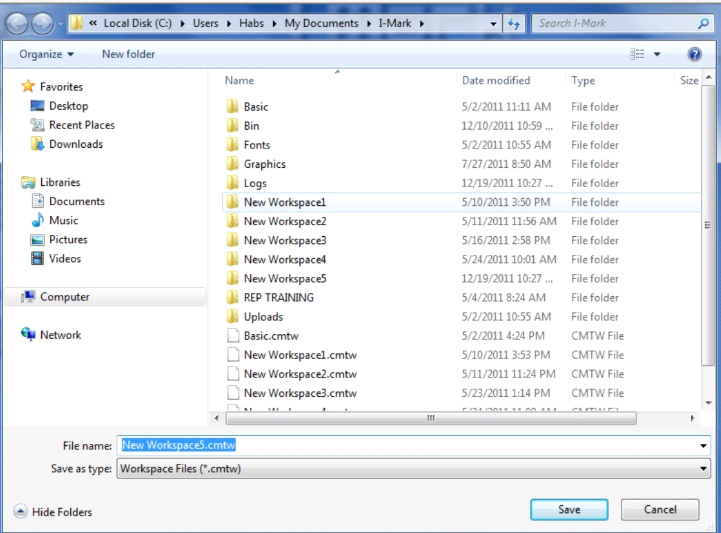
The file is not automatically created nor saved. The filename on the tab in the Main Work Area will be followed by an asterisk if the file has note been saved in its current state.
When the file is saved the file is located in the data directory under the Intelli-Mark program files. The extension name is .ctml.
Created with the Personal Edition of HelpNDoc: Maximize Your Documentation Output with HelpNDoc's Advanced Project Analyzer