Fatal Error Fix
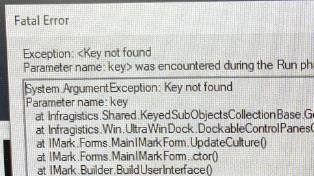
On rare occasions, I-Mark will throw a Fatal Error if the user database gets corrupted within Windows. This can happen for a number of reasons due to the volatility of Windows updates and registry changes, but thankfully, there is an easy fix.

If the Fatal Error appears as I-Mark is attempting to start up, ensure that I-Mark is closed and follow these steps:
- Open your Windows File Explorer by pressing the Windows Key + E at the same time.
Note: the Windows Key is a key on your keyboard with the Windows Logo (or some variation) on it. See the example screenshot on the right.
- Navigate to C:\Users\[username]\AppData\Local\Columbia_Marking_Tools\
Note: the “AppData” folder is typically hidden by default in Windows. To see hidden files and folders, go to “View” near the top-middle of the File Explorer window. Select Show then checkbox Hidden Items. Older versions of Windows may have this option under a slightly different menu in the File Explorer, but the same concept applies.
Note: [username] should be whatever the profile name is on your system. For example, in my screenshot, the [username] is nmanciero. If your PC has more than one user profile on it, you may need to navigate to each one to find the Columbia_Marking_Tools folder.
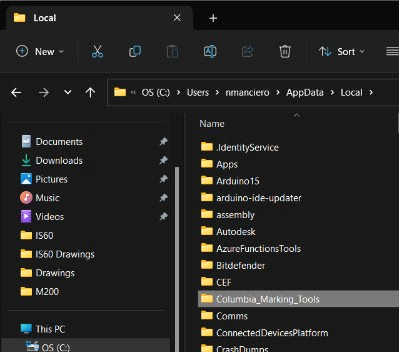
- Delete the Columbia_Marking_Tools folder. You may now close the File Explorer. This folder contains the corrupted user.config file.
- Start the I-Mark software.
It may take an extra minute or so to start, since the I-Mark software will automatically rebuild the user database.
If I-Mark functionality is not recovered after following the steps in this guide, please reach out to us at service@columbiamt.com and reference your Support Ticket number. If you have not created a support ticket yet, please do so at http://marking-machines.net/Support_Request.html. Thank you!
Created with the Personal Edition of HelpNDoc: Free Kindle producer