Configure for Stream UI Plug In
Configure I-Mark for Stream UI Plugin
The StreamUI plugin is designed to allow the user of I-Mark to select the program they wish to run from the User Interface and press an External Start button to run that selected program.
To activate the plug-in, let’s start by opening Windows Explorer and navigating to your I-Mark Installation directory. Typically, this is C:\Program Files (x86)\I-Mark_x.xxx.xxx.xxx\
Open the “Plugins/Not Used” folder and copy the file named “StreamUI.dll.”
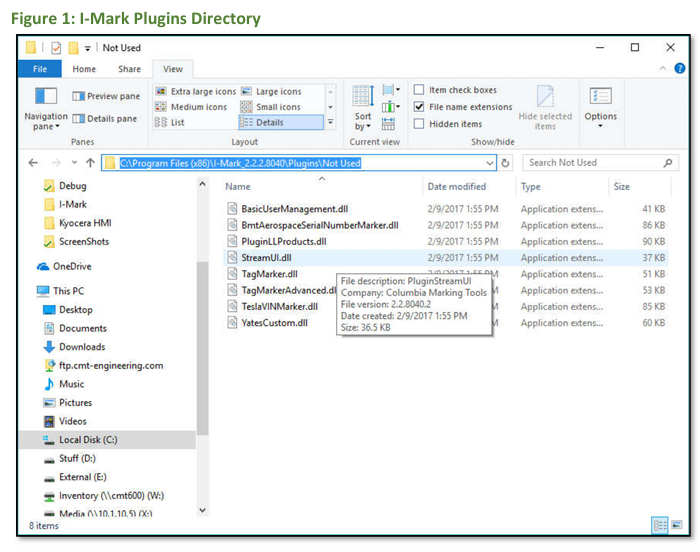
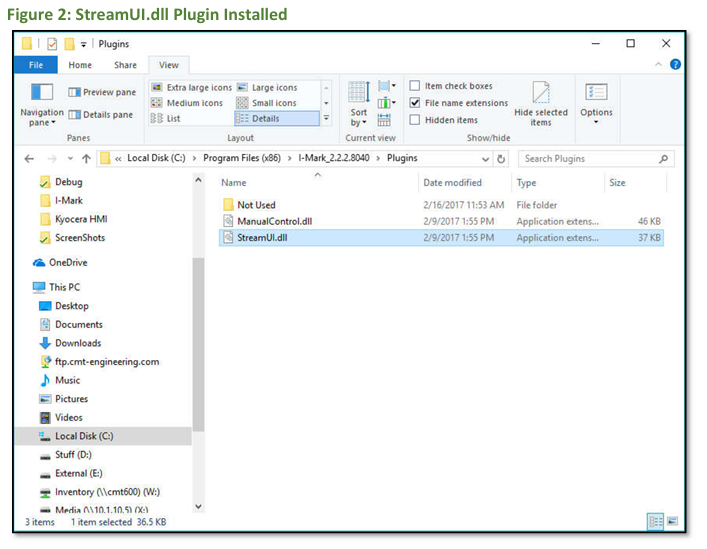
Move backwards one directory to the “Plugins” folder and paste the “StreamUI.dll” file here.
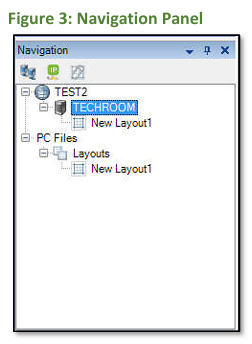
At this time, you can close Windows Explorer and open up the I-Mark software. When the I-Mark software is opened, Navigate to the controller page for the Marking System. This usually opens automatically for our M-Series (M75, M125) customers. However, if not you can open the controller page by Right Clicking on the Controller Icon for your machine found at the top of the “Navigation” panel.
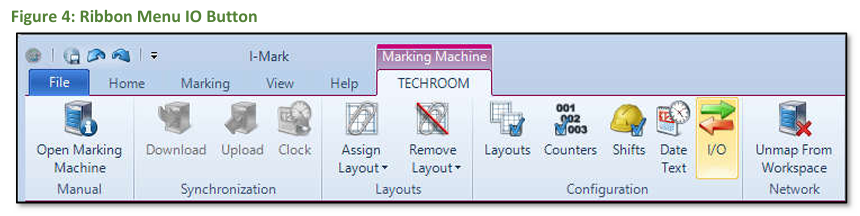
After you have the controller page open in the center panel of the software, select the “IO” button on the Controller’s ribbon menu.
Make the following changes to the I/O configuration in this page and press OK.
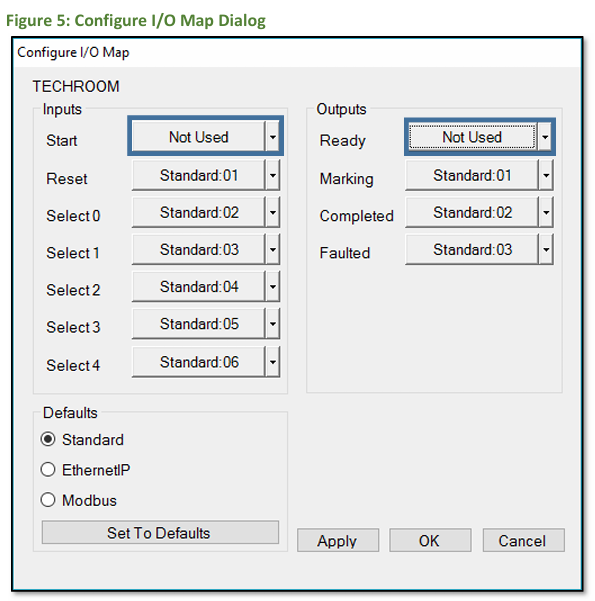
Once this is completed Press the “Download” button on the controller page to affect the changes into the controller. The controller will restart automatically after the download is completed. Once you select a marking layout from the “Status and Control” tab, the layout which is selected will now become the active marking layout. Anytime the controller receives a Start Input on the discrete I/O, the program which is selected will then begin marking.
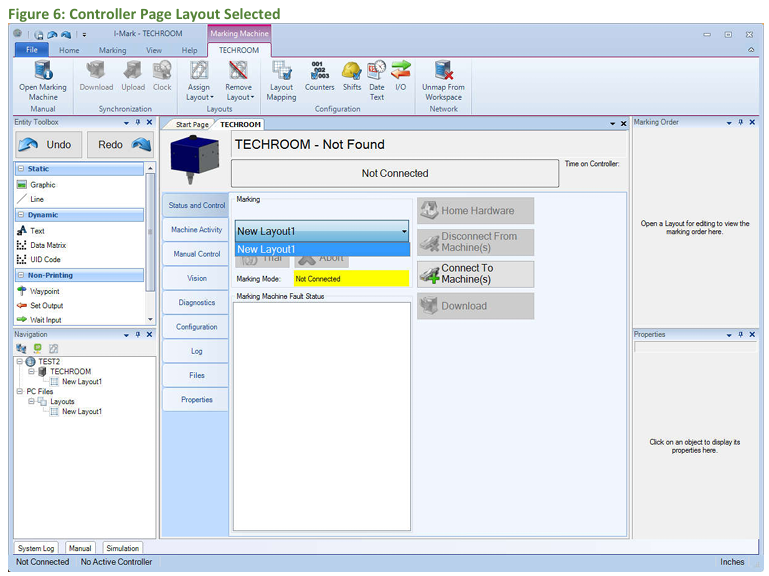
It is no longer required for you to “Download” your layout selections, change the selected layout to your desired Layout for marking.

For any other questions or concerns, please contact CMT Service dept. at 586-949-8400 or by email, service@columbiamt.com .
Created with the Personal Edition of HelpNDoc: Streamline Your Documentation Process with HelpNDoc's Project Analyzer